


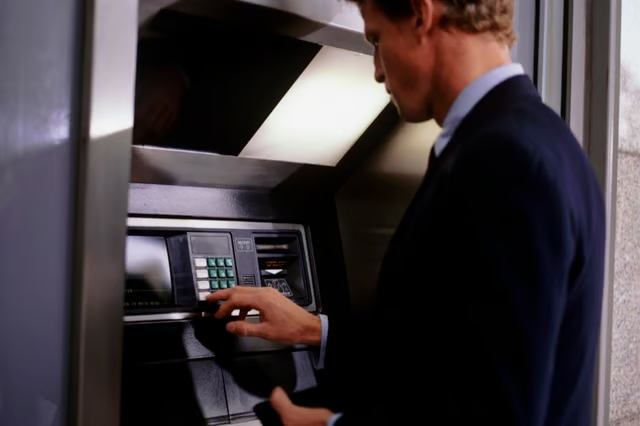
An automated teller machine card gives you access to money in your bank account or through your credit card. You can use a debit card withdraw or deposit money at ATMs, check your bank account balance or transfer funds from one account to another.
With some cards, you can make purchases online or at a store. This is like making a credit card purchase except that the money comes directly from your account. You’ll need to activate your card before you use it.
Read More: What Is a Debit Card?
Call the Activation Number
Your new ATM card likely came with an activation sticker that included a telephone number you can call to activate the card. Call the number given and when the prompt asks for it, key in or speak the numbers on the front of your card. Speak clearly and slowly as this is an automated method. If you miss a number, enter the number incorrectly, or if the system misunderstands you, your card will not activate.
Read More: How to Activate My New Credit Card
Activate Online or Through Mobile
With some banks, you can activate your ATM card online. On the bank’s website, go to the card activation page. You’ll need to enter the card number and provide information to verify that you're the account owner. The verification process often involves providing your Social Security number. Also, you might need to enroll in the bank’s Online Banking system first and then use your access to activate your card.
You might also be able to activate your card using your bank's mobile banking app. Check out the Apple Store or Google Play, or your bank's website, to see if this is an option. If it is, download the app to your phone, activate it and follow the directions to activate your card.
Read More: How Do I Check to See If My Debit Card Is Activated?
Make a Purchase
In some cases you can activate your card by making a purchase with it. If you use this method, you’ll need to enter your PIN when you make your first purchase. The PIN is the number you selected when you set up the account. It’s the number you’ll use when you access ATM machines. If you haven't selected a PIN, you’ll need to use another method to activate your card.
Use It at the ATM
A simple way to activate your ATM card is to use your card at an ATM, either to check your account balance or withdraw or deposit money. This method also requires your personal identification number, so if you didn’t receive a PIN a few days after you received your card or create one, you’ll need to use a different method to activate your card. You won't be able to call your bank and get a PIN over the phone. You can request a new PIN, but it will be mailed to you.
Speak With a Bank Representative
You also can call the bank’s customer service number to activate your card. You’ll need to give the representative information that verifies you as the account holder. As with the other methods, you’ll also need to provide the card number. Other information you might need will include the address associated with your account, your Social Security number or last four digits of it and the security number on the back of your card.
